
Ham Spotting Made Simple: Feeds, Notifications, and More with 'Spotted Ham'
By ERIC HENDRICKSON
Although I retired from an IT career a few years ago, I still live in “Silicon Valley” and try to stay in touch with the trends and people who make things happen. I’m surrounded by some of the top minds in the industry. Software developers, chip designers, electrical and mechanical engineers, RF specialists, and a slew of other big-brained people that I get to hang out and chat with on a regular basis.
One of those amazing local fellows is my ham friend, Rob Campbell, KM6HBH. Rob has put out a very slick and powerful new web-based spotting tool affectionately referred to as Spotted Ham. The product is out of testing and now available for widespread use and I encourage everyone to check it out!
What is Ham Spotting?
Ham spotting networks act like real-time bulletin boards for radio activity. When an operator hears or works an interesting station, they can post a “spot” that usually includes the station’s call sign, frequency, mode, time, and a short comment.
General DX spotting sites such as DX Watch collect these reports into a live feed so operators can quickly see where rare DX, band openings, contest activity, or interesting signals are appearing. Instead of tuning blindly across the bands, hams can use these spots as clues, then listen for themselves and decide whether propagation, timing, and station capability make a contact possible.
SOTA and POTA spotting systems work on the same basic idea, but they focus on portable activations rather than general DX. On SOTAwatch, activators and chasers post alerts and spots for stations operating from qualifying summits, helping chasers find operators who may be running low power from remote locations. POTA’s spotting tools do the same for operators activating parks, showing hunters which call signs are on the air, where they are operating, and what frequency or mode they are using.
Together, these networks turn amateur radio into a more connected, real-time activity: Activators get discovered more easily, hunters find more stations to work, and everyone gains a better picture of what is happening on the bands right now.
‘Spotted Ham’ Loaded with Features
There are a number of cool features built into Spotted Ham, including:
- Convenient Self-Spotting
- Real-Time Email Alerts
- Filtered Feeds
- Club Activity Monitoring
Easy Self Spotting with ‘Spotted Ham’
One of my favorite features is the ability to easily self spot. Rob has put together a very intuitive interface that makes it super simple to put yourself on the roster and share it far and wide. The form remembers your recent values, making it quick and easy to repeat recent spot details.
A well-placed self-spot can dramatically increase activity, reducing time spent calling CQ.
The ability to self-spot is a valuable tools for portable and special-event operators. By posting your own call sign, frequency, mode, and operating location to a spotting network, you immediately let thousands of potential contacts know exactly where to find you. This is especially important for activities such as Parks on the Air, Summits on the Air, special event stations, and low-power portable operations, where finding an operator can otherwise be difficult.
Rather than waiting for someone else to discover and spot your station, self-spotting allows you to actively promote your presence on the air and connect with interested operators around the world.
Spot Alerts in Real Time
Another great feature is the real-time alerting capability that can be configured to alert on call sign, but by park or summit identifiers, region or city names, and even by band or mode. It’s a very flexible alerting system that I’ve been testing for a few months and find to be quite reliable.
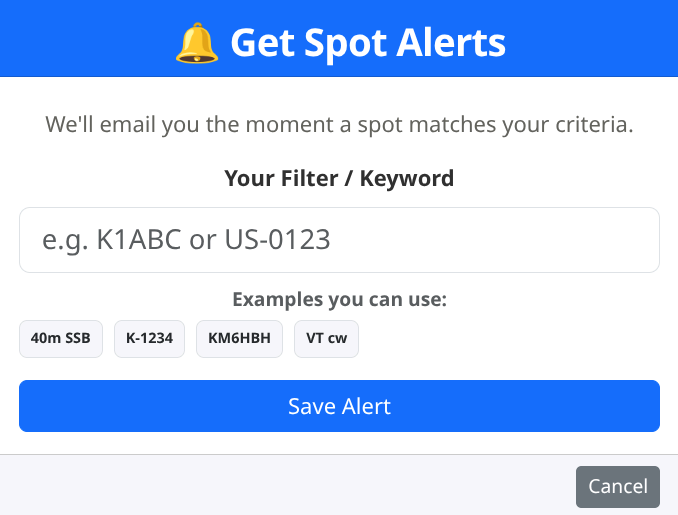
Initially, alerts were getting caught up in my spam filter, but that seems to be resolved now and everything works the way I would expect.
Filtered Ham Spotting Feeds
One of the most useful features of Spotted Ham is its ability to filter and consolidate information from multiple amateur radio spotting sources into a single, easy-to-read view. Rather than monitoring separate websites for DX activity, Parks on the Air (POTA), and Summits on the Air (SOTA), operators can view all of this information through one interface and apply filters that match their specific interests.
Users can narrow the feed by call sign, band, mode, park number, summit reference, net name, or other keywords, allowing them to focus on the activity that matters most to them instead of sorting through hundreds of unrelated spots.
Spotted Ham goes a step further by allowing operators to create highly customized watch lists and alerts based on those same filters. For example, a POTA hunter can monitor a favorite park reference, a DX enthusiast can watch for a specific call sign or country, and a club member can track activity from local operators.
The platform continuously monitors incoming spotting data and can notify users when a matching spot appears, eliminating the need to constantly refresh a spotting page throughout the day. This combination of real-time filtering, customizable alerts, and integrated spot feeds helps operators spend less time searching for activity and more time making contacts.
Shared Club Ham Spot Activity Feed
One of the most interesting uses of Spotted Ham is its ability to create a shared activity channel for amateur radio clubs, special interest groups, and informal communities of operators. By embedding a customized Spotted Ham feed on a club website, organizations can give members a real-time view of who is currently active on the air.
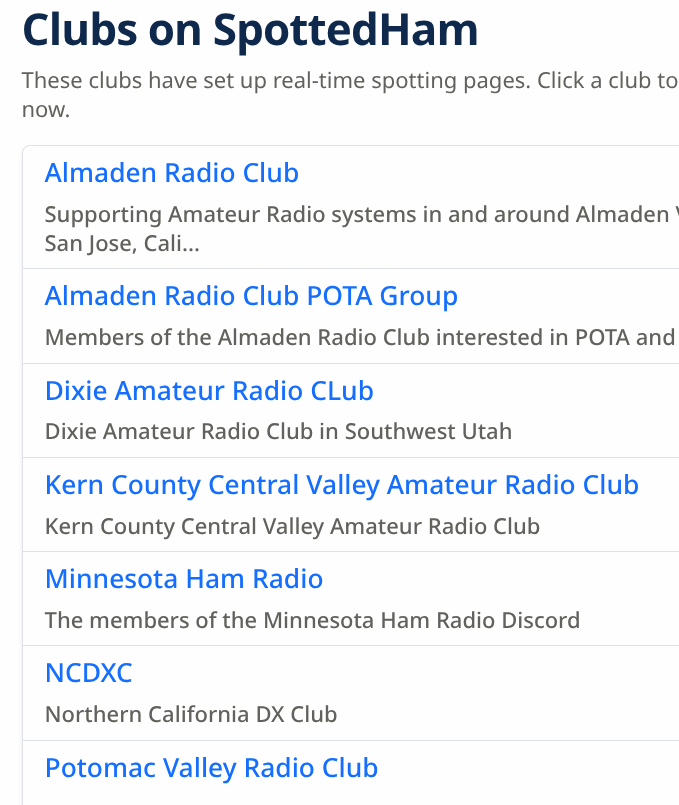
Instead of relying solely on scheduled nets, email lists, or social media posts, members can see at a glance when fellow operators are calling CQ, activating a park, working a summit, or simply looking for contacts. This helps keep clubs engaged between meetings and encourages more spontaneous on-air activity.
I’ve created my own group that I track right here on the W6HS.net website.
For clubs and organizations, the platform creates new opportunities to promote participation and strengthen connections among members. Custom filters, club pages, widgets, and group alerting allow a club to focus on its own operators and operating interests rather than the entire global spotting stream.
A member traveling out of state, operating from a rare location, activating a park, or participating in a special event can quickly notify fellow club members simply by posting a spot. The result is a community that remains connected through day-to-day operating activity, turning a club website from a static source of information into a living hub that reflects what its members are doing on the air right now.
In closing, I just want to thank Rob for making this valuable tool freely available to the amateur radio community. This thing hit the ground running and as adoption grows, Spotted Ham will become a standard tool for hams far and wide. Cheers and 73. Eric W6HS.
Full Path: https://w6hs.net/ham-spotting-made-simple-feeds-notifications-and-more-with-spottedham/
Shortcut: https://w6hs.net/r/spottedham